A Beginner's Guide to Onyx Chat Notifications and Muting Chats
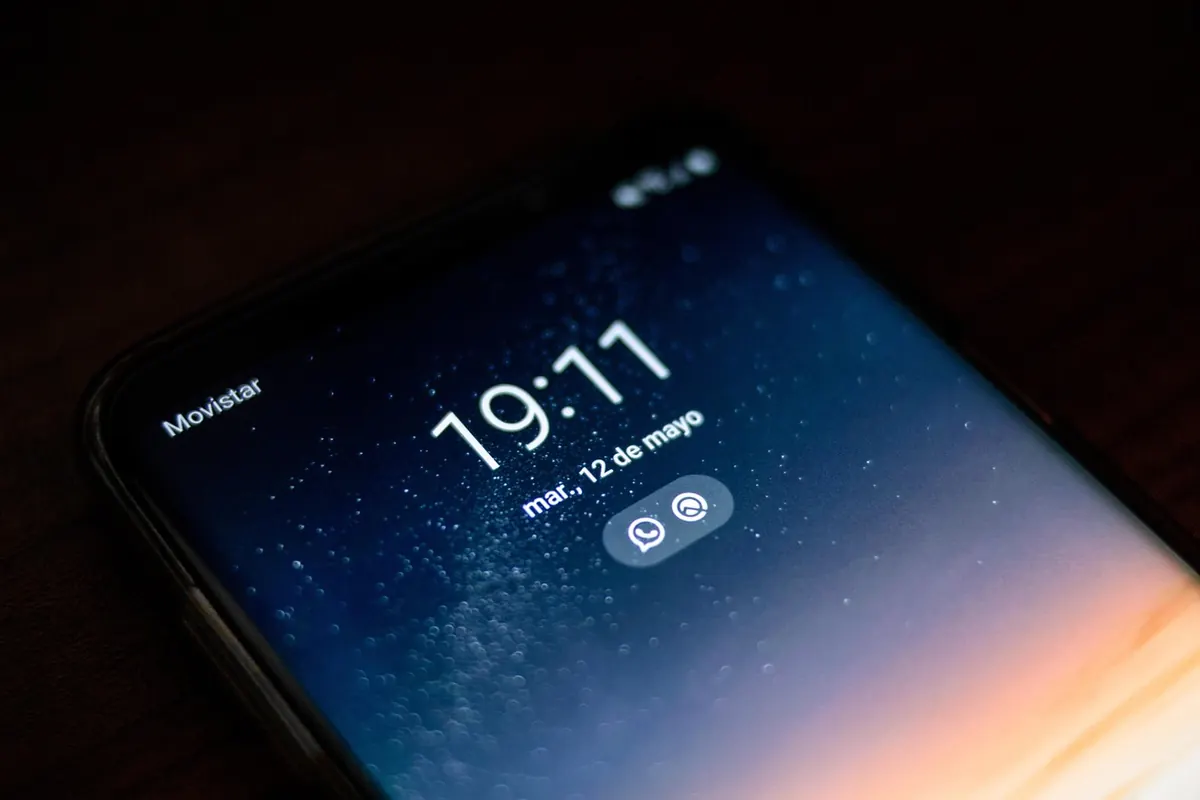
A new chat app is quiet for about a day. Then the groups start, the replies pile up, and every few minutes your phone lights up with something that did not need your attention right now. None of that means you have to choose between being reachable and being left alone.
Onyx Chat gives you several ways to decide which messages interrupt you and which can wait until you next open the app. The trick is knowing which control to reach for. What follows is a practical walkthrough of alert customisation, Do Not Disturb and muting, so you can set the volume to something you actually want to hear.
Where the notification controls live
Notifications work in layers, and most problems with them come from adjusting the wrong one. There are three to know about:
- App-wide settings — the default behaviour for every chat you have not customised.
- Per-chat settings — overrides for one conversation, group or channel.
- Device settings — your phone or computer's own permissions, which sit above everything else.
That last layer catches people out. If your phone has notifications switched off for the app, no amount of fiddling inside Onyx Chat will bring a banner back. Check the device settings first, then work inwards.
Deciding what deserves an alert
Most people want the same three things to interrupt them: a direct message from a person, a mention of their name, and a reply to something they posted. General chatter in a busy group, reactions and channel updates can usually wait.
Set your app-wide default to something modest, then make exceptions upwards rather than downwards. Banners on, sound off and previews off is a sensible starting point: you can see that something arrived without the app competing for your attention.
Then go through your chat list and mark the handful of conversations that genuinely deserve to break through — a partner, a close friend, a work channel where you are on call this week. Ten favourites is plenty; fifty defeats the purpose.
Keep previews off the lock screen
Previews are convenient at home and awkward on a train. If you would rather not have half a conversation visible to the person beside you, switch message previews off for the lock screen and leave them on inside the app.
Do Not Disturb, used properly
Do Not Disturb silences alerts without deleting anything. Messages still arrive and still appear when you open the app; they simply do not buzz, ring or flash while it is switched on. That makes it the wrong tool for a chat you never want to hear from, and the right tool for protecting blocks of time.
Scheduled quiet hours
Set a recurring window covering the hours you sleep and the start of your morning — nine in the evening until seven, for example. If your work spans time zones, add a second window around whatever block of deep work you protect during the day.
Manual Do Not Disturb
Switch it on before a meeting, a meal or a cinema trip. The common mistake is forgetting to switch it off and then wondering why nobody replied, so if there is an end-time option, use it. Two hours is easier to trust than "until I remember".
Many platforms allow exceptions, letting calls or messages from certain contacts through while everything else stays quiet. It is worth checking whether that option is available to you, because an emergency is exactly the moment you want it already in place.
Muting a chat without leaving it
Muting is the gentler option. You stay in the group, keep the history and can read whenever you like, but the chat stops sending alerts. Nobody else is told, and no "left the group" message appears.
When you mute, you usually get a choice of duration:
- One hour — for a conversation that has gone off on a tangent while you are trying to finish something.
- Eight hours — a working day, or overnight for a group that chats late.
- One week — holidays, busy periods, or a project generating more noise than news.
- Until I turn it back on — the honest option for a chat you will probably never want alerts from again.
If a muted chat should still reach you when your name comes up, look for a mentions-only setting. That keeps you informed without making you read every "sounds good".
Muting is not the same as leaving. Leave a chat when you have no intention of reading it and the noise is only part of the problem. Mute when you want to catch up on your own terms: a family group, a hobby community, a neighbourhood chat you dip into occasionally.
Small habits that keep things quiet
Settings drift. New groups appear, old ones go dormant, and a chat you muted for a week quietly becomes one you have muted for eight months.
Review the muted list once a month. Unmute anything you have started reading again and leave anything you have not opened in weeks. Do the same with favourite contacts, so the list keeps meaning something. If a group has turned into pure admin noise with nobody you know in it, leaving is housekeeping rather than rudeness.
It also helps to resist replying to everything instantly. A chat that expects immediate answers trains everyone in it to send more messages; reading on your own schedule is a habit worth keeping.
Your first five minutes
If you would rather just get it done, work through this once and then leave it alone:
- Check your device's notification permissions for the app, then open Onyx Chat's own settings.
- Set the app-wide default to banners on, sound off, previews off.
- Schedule Do Not Disturb across your sleeping hours.
- Mute the
Photo: kevberon / Pixabay